
Admins can see and edit classroom grade levels
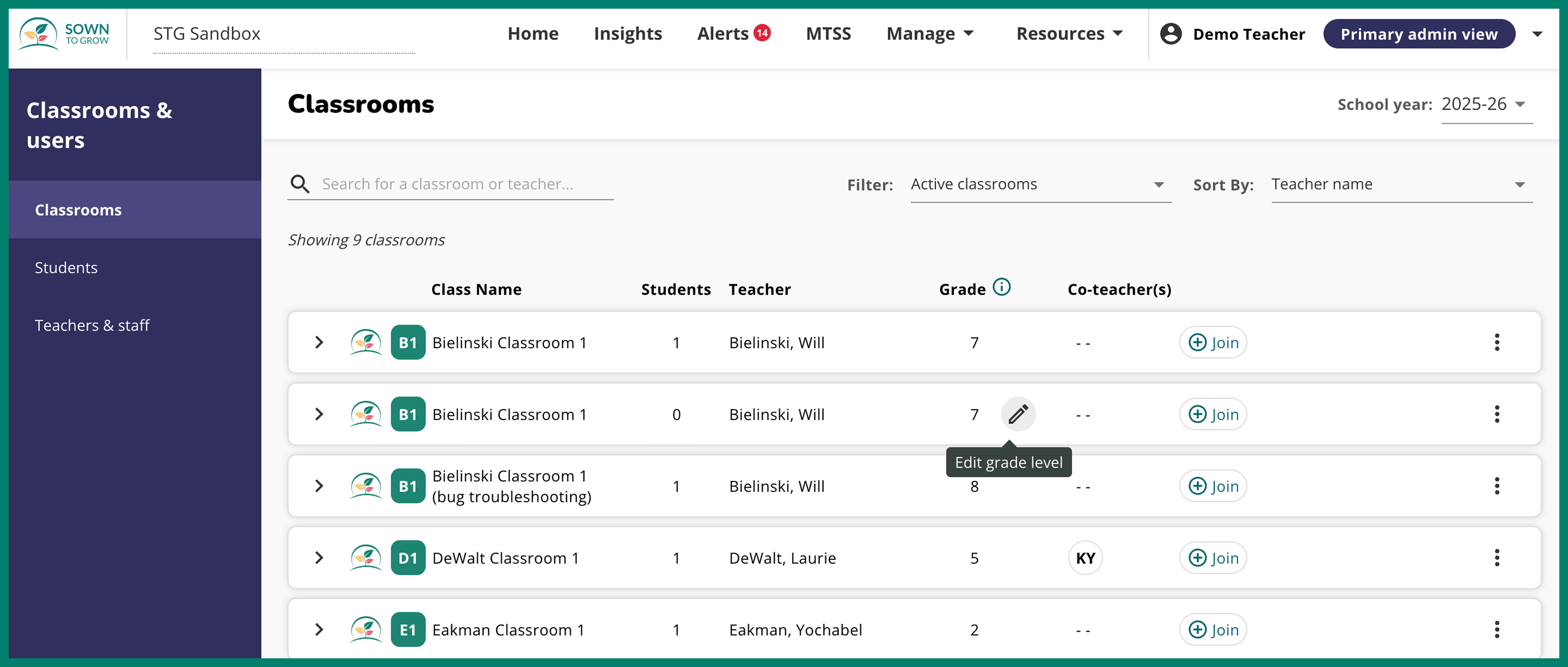
Admins can now view and edit the grade levels of all classrooms in their school in the “Classrooms” page. Teachers and co-teachers can also edit the grade level of their classroom(s). Accurate classroom grade levels ensures that students see the appropriate content. Follow the steps below to update any classroom’s grade level.
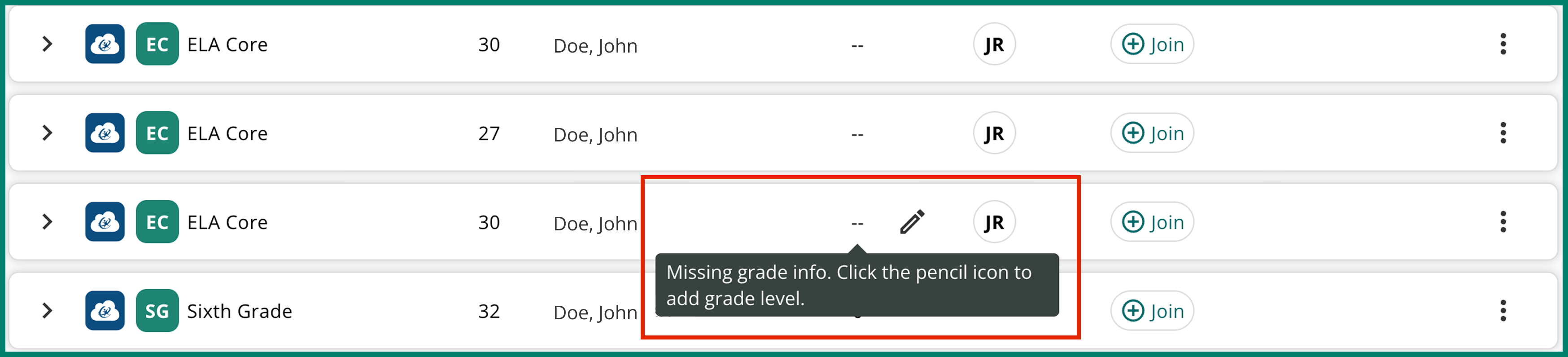
Administrators can edit classroom grade levels by clicking “Manage” → “Classrooms & users” to access the “Classrooms” page. From here, hover over any classroom’s grade and click the pencil icon to edit it. If a classroom does not have an associated grade level, hover over the empty column and click on the pencil icon to add a grade level.
.png)
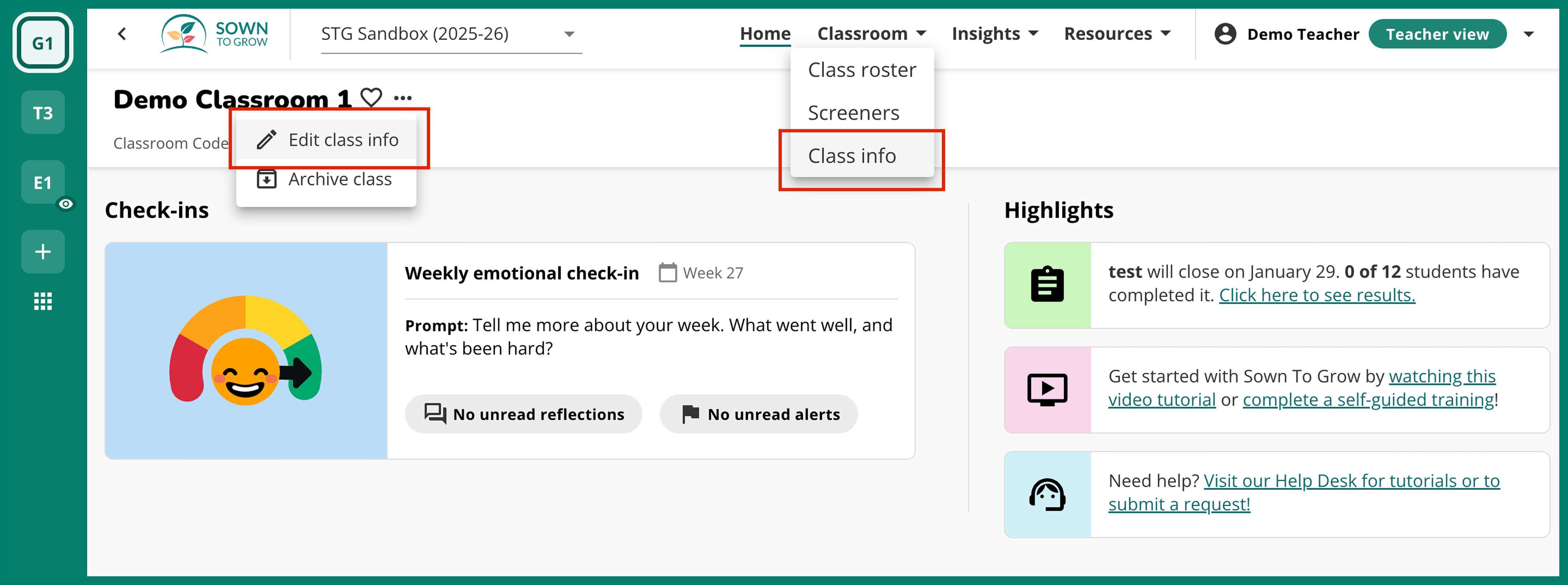
Teachers and co-teachers can edit their classroom info, including editing its grade level, in two ways:
- Click “Classroom” in the top level navigation and then “Class info”
- On a classroom’s home page, click the three dots next to the class name and then click “Edit class info”
.png)
This update gives schools more control and ensures every student receives content tailored to their grade level.
