
Admins can now share modules with one or more grade levels
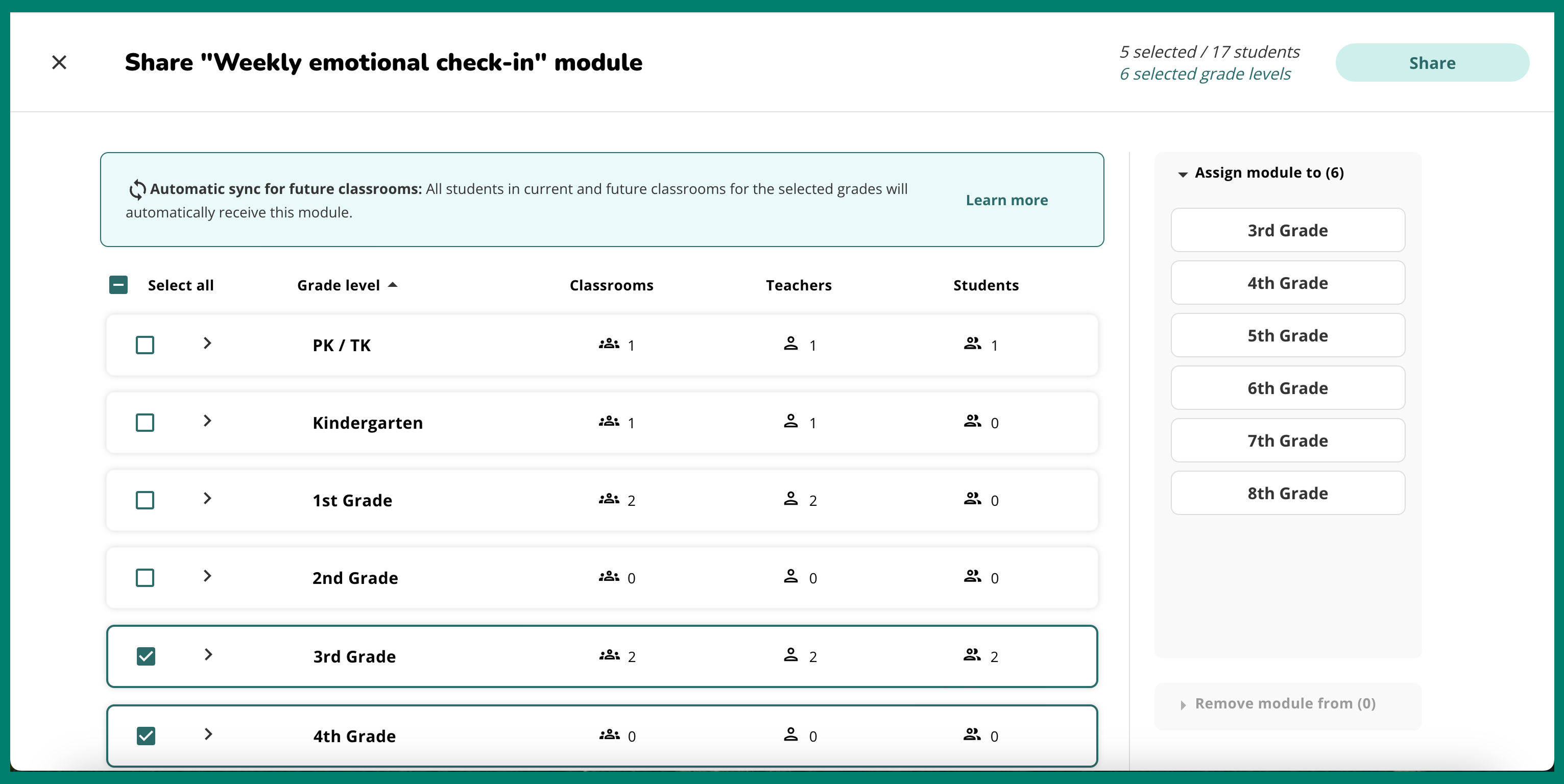
The “Sync by Grade Level” share type allows school admins to share modules with all students across grade levels at once. “Whole School Sync” and “Classroom Sync” remain as alternate syncing options.
Syncing options can be accessed by the “Share module” or “Update share options” button in the top right corner within each module. Once “Grade level sync,” is selected, admins will have the option to select which grade levels the module applies to. The grade selection menu will also include information on which classrooms and teachers belong to each grade level.
.png)
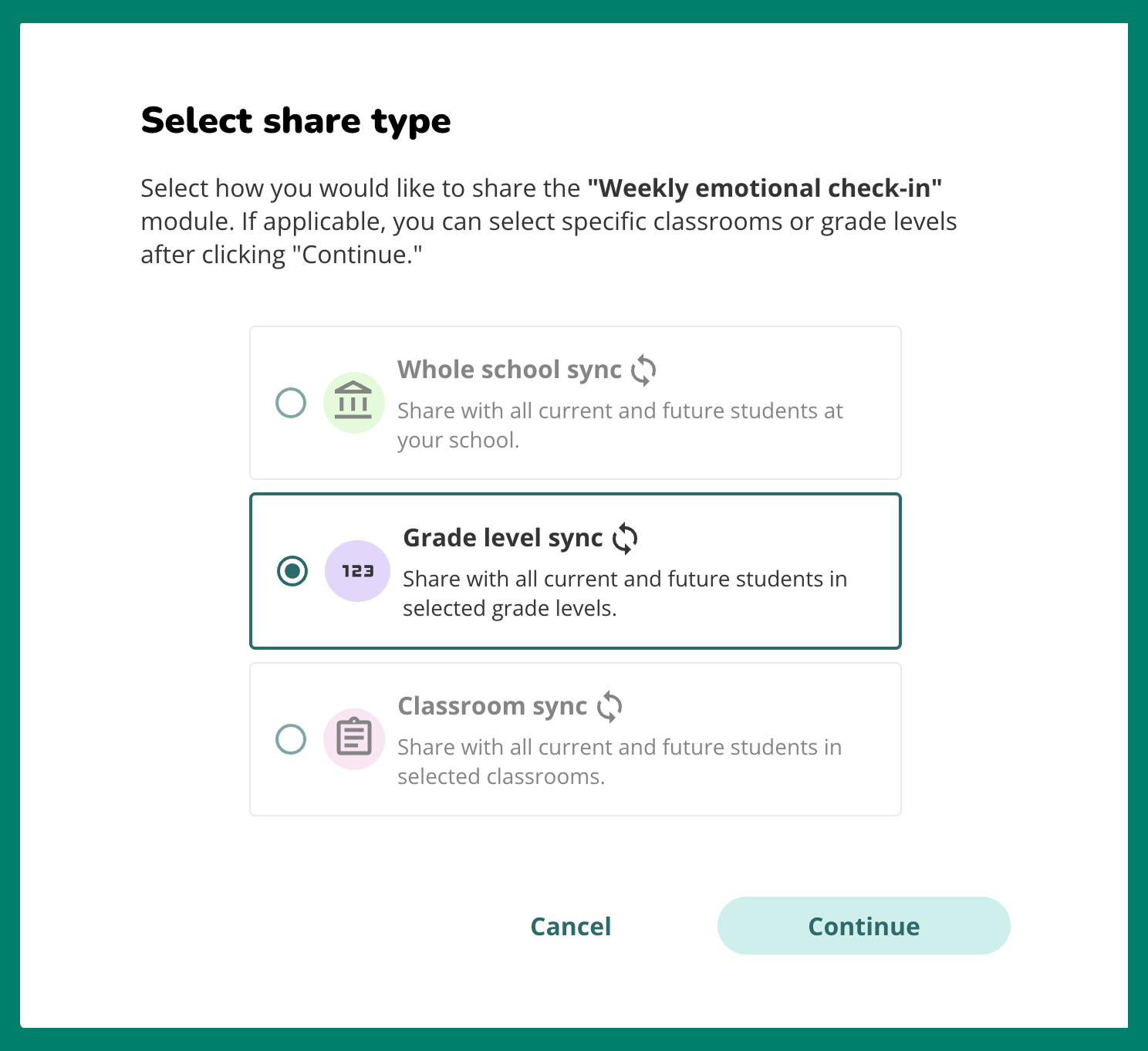
This new sync type applies to all current and future students in a grade level. This means that students added to classrooms after modules have been synced by grade level will automatically be assigned that module. Teachers and admins should make sure that each classroom has the correct grade level assigned in Sown To Grow in order to receive the correct module.
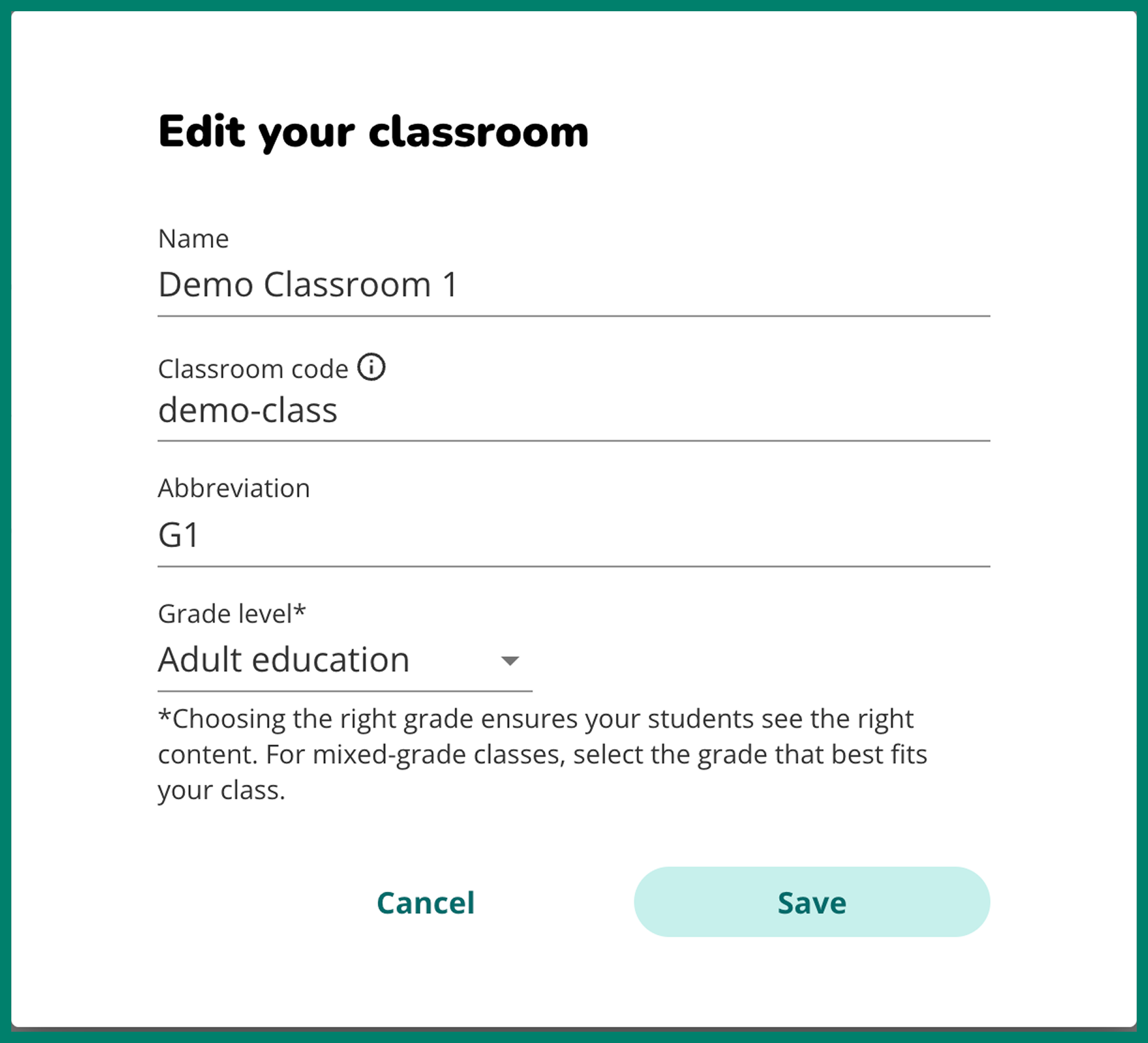
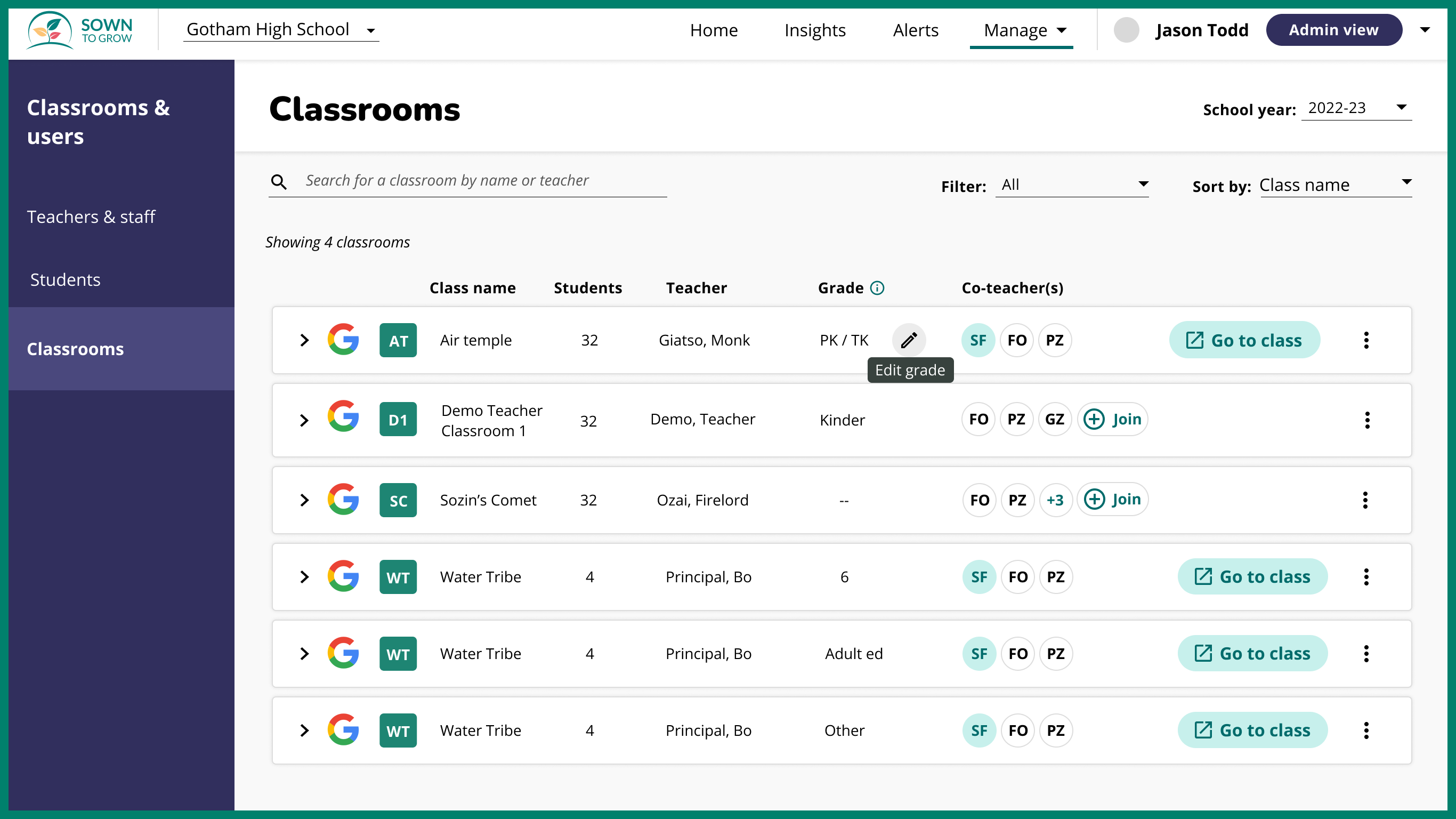
This feature builds on updated screener syncing functionality released earlier this year which allows admins to sync screeners by grade level (covered in this blogpost). More information on changing grade level can be found in these help desk articles: for teachers, and for admins.
